Thursday, October 20, 2016

How to use FaceTime rival Google Duo app for Video Calling

Google Duo is another video calling app trying to claw its way in the video calling space. It’s free to use and allows you to make one-on-one video calls to compete against the likes of FaceTime, WhatsApp, and Skype. The app’s USP is its simple and hassle free interface (no need to remember login details). It also offers encrypted communication and other nifty features such as Knock Knock. Google unveiled Duo at its Google I/O developer conference in 2016. The app is now available for free on both iOS and Android. 

Here’s how Duo works, including a list of steps as to how to get started with the app.

google duo


  • Download the app on your iOS or Android device. Once installed, just agree to Google’s Privacy Policy and Terms of Service.
  • Once all the above is done, enter your phone number. Google will then send you a one-time code via SMS, enter the confirmation code received, just give the requisite permissions and you’re good to go! Something similar to how WhatsApp works  – no login required.
  • Now you’ll land at the app’s main interface. You’ll see a screen split into two, with the top showing the camera’s field of view, while the bottom half has a large video calling button. You’ll be asked to give the app access to your contacts when you first see this screen.
  • To start making a video call, just tap on the video button which opens up your contacts. You can also send invites or just tap on the video call button to start the video chat session. Your friends or contacts will also need to install Duo to be able to use the video calling feature.
  • Once both parties have Duo installed, just tap the video call button which throws up your contacts, and then find your friend and tap on his/her name to make the video call.
  • When your friend answers your call, you’ll see the video calling screen which shows whatever your friend’s camera sees along with five buttons. These five buttons allow you to change the audio source, a button to switch between your rear and facing cameras, a mute button, a button for your camera view and the end call button.


Wrap Up

I did try the app and was pleasantly surprised by its straightforward and easy to use interface. The setup is a breeze, while the app seems fast, intelligent and responsive. If you’d like to try Duo, head over to the download links here and here depending on whether you’re an Android or an iOS user.

Wednesday, October 19, 2016

How to convert videos to GIF on Windows PC: Step-by-step guide

GIF pictures are a small snippet of a video (or fully animated) to embed in websites or share it as a meme. The main reason to do this is that GIF images are smaller than the whole video, and it repeats itself automatically. If you still don’t know how Memecenter got all those memes then let me tell you the secret of doing that.


Method 1: Use Giphy

Giphy is a website for all kinds of GIF animations; funny, quotes, inspirational and slideshows. You will find some GIF animations there for your need, so you don’t need to make it from the scratch. Let me guide you through the steps for making a GIF animation from a video using Giphy.
  1. Open any internet browser (should support Flash; Google Chrome and Mozilla Firefox recommended) and navigate to www.giphy.com/create/gifmaker.
Screenshot (25)
       2. Copy the link of the Youtube video URL and paste it in the big text box in the center.
       3. Or click Browse to upload any video from your PC.
       4. Once the video is uploaded, you will see a preview of the video you uploaded.
       5. Using time sliders, you can select the video part you want to make the GIF animation of.
       6. Check the terms and services box and click CREATE GIF.
       7. Once done, you will see the preview as the result, you can save it by clicking  
          ADVANCED >      DOWNLOAD.

Method 2: Memecenter

We mostly create GIF animations for trolling others and make memes (well I do this every week). Memecenter is the biggest website to share your meme with the world. You can open Memecenter and start to the never ending meme wall (which I do every day before start my work). Let’s see how you can create awesomely memes using Memecenter.

  1. Open an internet browser and navigate to www.memecenter.com.
  2. Click Create then Gifmaker and select the option; Animated GIF or Reaction GIFmemecenter
  3. After that, you will get four options to craft GIF from.
  4. Select the one you want; here we chose to Create a GIF from Video.
  5. Paste the video URL into the URL box and click Next.
  6. Now you will see video preview with a timeline to trim the video.
  7. After selecting the desired part, click Add Video.
  8. After that, you will be presented with a software interface to make some editing in the GIF.
  9. After editing the GIF in the editor, click Save GIF to download the resulting GIF.

The final GIF will get created with a small watermark of the respected website below the GIF. Now you can share this GIF everywhere with your friends. Or you can create a new account on Memecenter and share it with the world.


Conclusion

Giphy Cam is an official app from Giphy which you can use to create gif on the go. You can create your own gif and share them on the social network or save it to show them to your friends. Download the official app here.

Steps To Get Reliance Jio PUK Code/Pin & Unblock Your Jio SIM


Hello Friends, Today, Presenting you the Easiest & Simplest method by which you can Unblock PUK Code Of Your JIO Sim Card quickly or get PUK Code online .Just follow these Simple steps and after that your Reliance JIO Sim card will be Unblocked within few Minutes.
jio-puk-code-online


Reliance JIO Started its Preview Offer for Samsung &Lyf ( Manufactured By Intex ) Mobile Users In the Mid of 2016 , In which they stated Free complimentary Access to Internet For 3 Months From the date Of Activating Reliance JIO Sim Card After That Reliance JIO had included All 4G Handsets & Turned All users ( Existing/ New ) From Preview Offer to Welcome Offer ( 4GB FUP – Fair Uses Policy ) , Welcome Offer Is Valid Till 31st December 2016 . 

get reliance jio welcome offer


What Is PUK Code & PIN Code :

PUK Code Is a Type of Security to Avoid Unauthorized uses of Your sim Card. It contains 8 Numeric Digits & it is to be Provided by Network Service Provider. Their is no Relation with Mobile in this type of Security. PIN Code is also a small Layer of Security to Protect Unauthorized uses of your Sim Card by anyone . It usually contains 4 Numeric Digits. It can be Changed according to your Choice. Their is no Relation with Mobile Phone in this type of Number.


Security PUK & PIN FAQ'S :

Generally , The default Pin Code Of All Major Operators are Either 0000 or 1234 . After Getting PUK Code you Can Modify PIN Code For Frequent uses, If you Enable PIN code Then it will ask for PIN Code On Screen After Switching On your Mobile According To Current Rule By Entering Wrong PIN For 3 Times You will be Asked For PUK Code And by Entering wrong PUK Code for 10 Times Your Sim card will be Blocked Permanently. After Blocking The sim card you have only one option and that is " Replacement" 


unlock-jio-sim-card-puk-code


HOW TO GET PUK OF JIO SIM :-

To Know PUK Code Of Your Reliance JIO Sim Card, Follow These Simple Steps Below :-
  • Firstly , Place a call from Any Mobile Number : 18008899999   ( Toll Free )
  • After choosing Language , Assistant will attend your call , Say them that you want to Talk to JIO Customer Care
  • Say them that you want PUK Code of your JIO Number
  • He will verify Your details  & Your Identity which you given at the time of taking sim.
  • After that, He will provide you PUK Code for your JIO Sim card.
  • Just Enter it , Where it asks on your Mobile screen.
  • SetUP New Pin ( 4 Digits ) & After that Turn Off PUK Code in Security Settings.


Get Jio PUK Code Online:-

Guys if you do't want mess with customer care Then You Can also mail to Care@jio.com Related to this issue and they ask you detail just forward your verification detail and get your Code online but it will take More time like 72 Hours to get Reply from JIO CARE Through mail Support So choice is Yours ultimately .


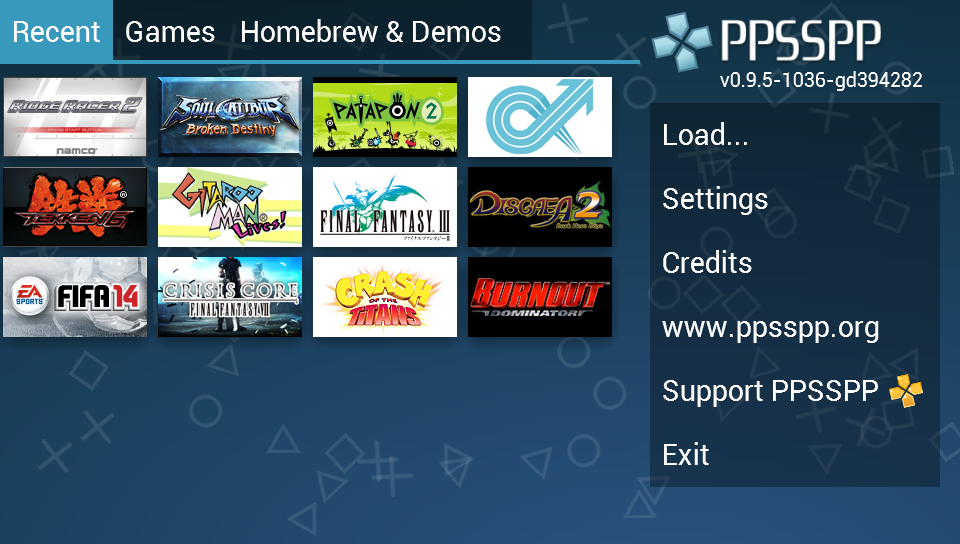
Run PSP on your PC or even Mobile Phone

 Run PSP on your PC or even Mobile Phone

No need buying PSP

We can run or play PSP games on devices running on every OS

Download Links:

For Windows

For Android

 For other Operating System you can click on this link


After this you download the ISO files and select them in ppsspp app & play


Image result for ppsspp